Sign in
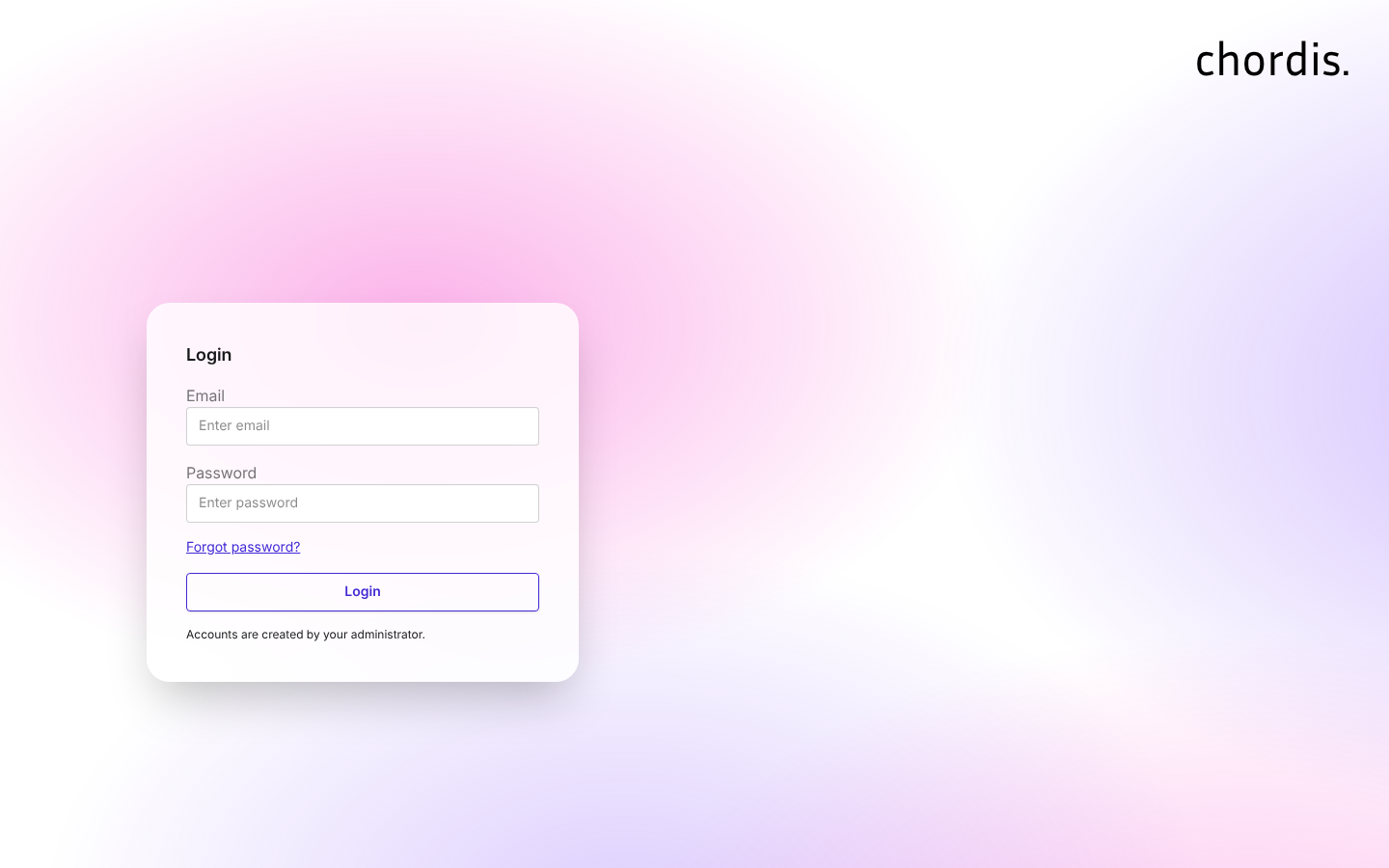
Sign in with your Email and Password, then select Login.
- Accounts are created by your administrator. There is no self sign-up. Ask the administrator of your Chordis account for access.
- If two-factor authentication is on for your account, Chordis asks for a code from your authenticator app after the password. You manage this on your Profile.
Reset a forgotten password
-
Select Forgot password? on the sign-in page.
-
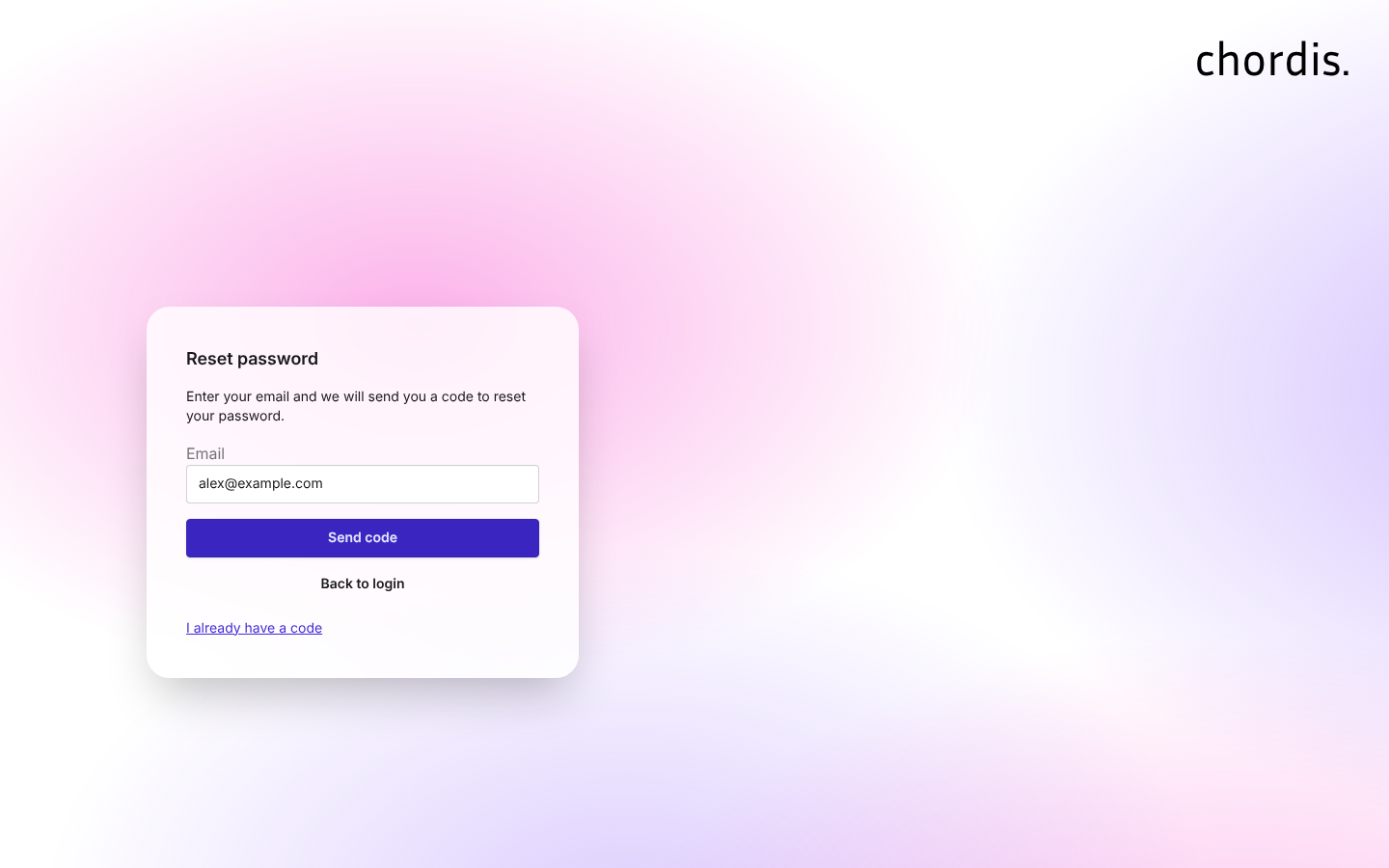
Enter your Email and select Send code.
-
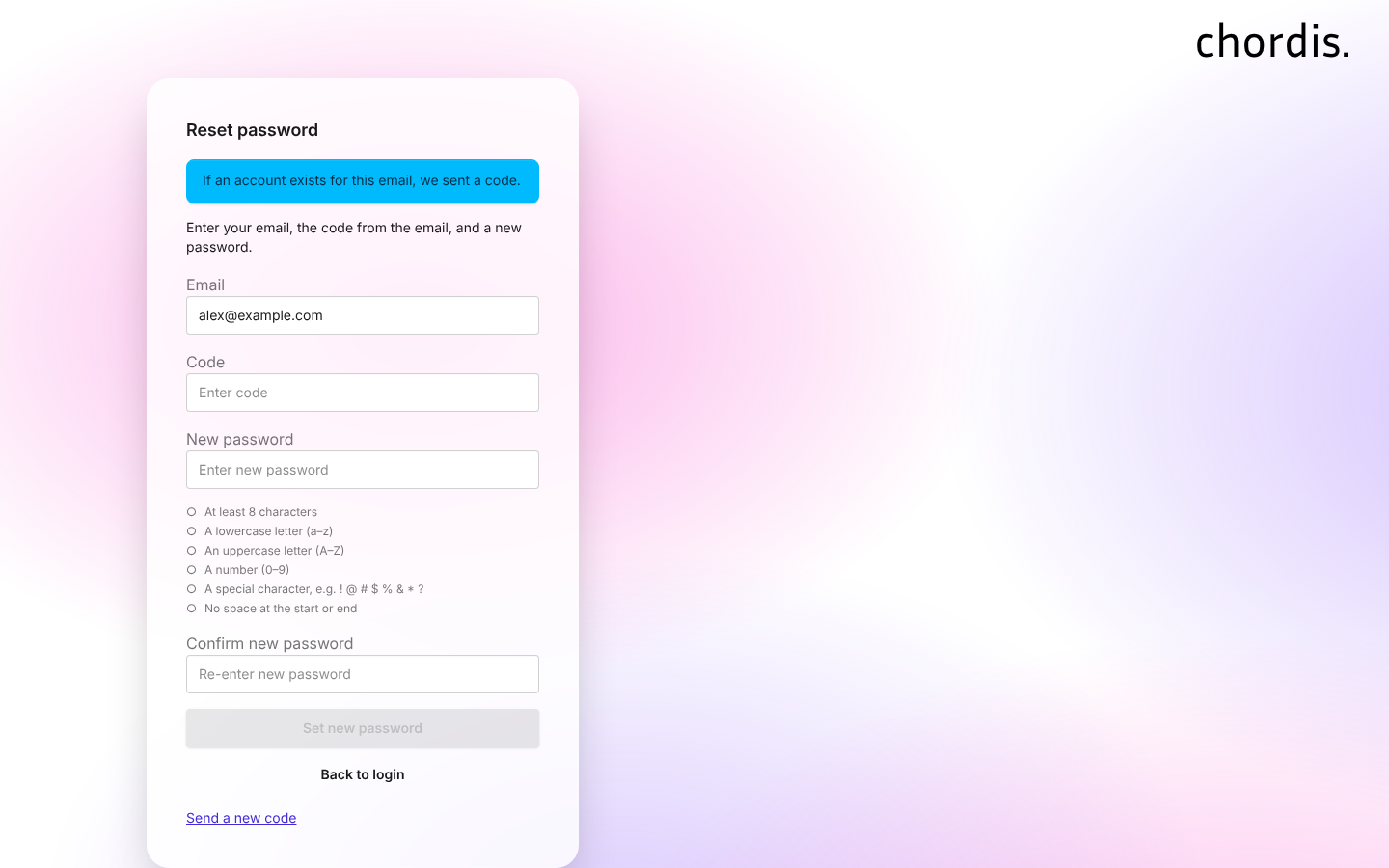
Chordis confirms: If an account exists for this email, we sent a code. Enter the Code from the email and your New password twice. The list below the field shows which password requirements are met. Select Set new password.
-
Sign in with your new password.
If you already have a code, select I already have a code in step 2. Send a new code requests another one; Back to login returns to the sign-in page.
After a password change
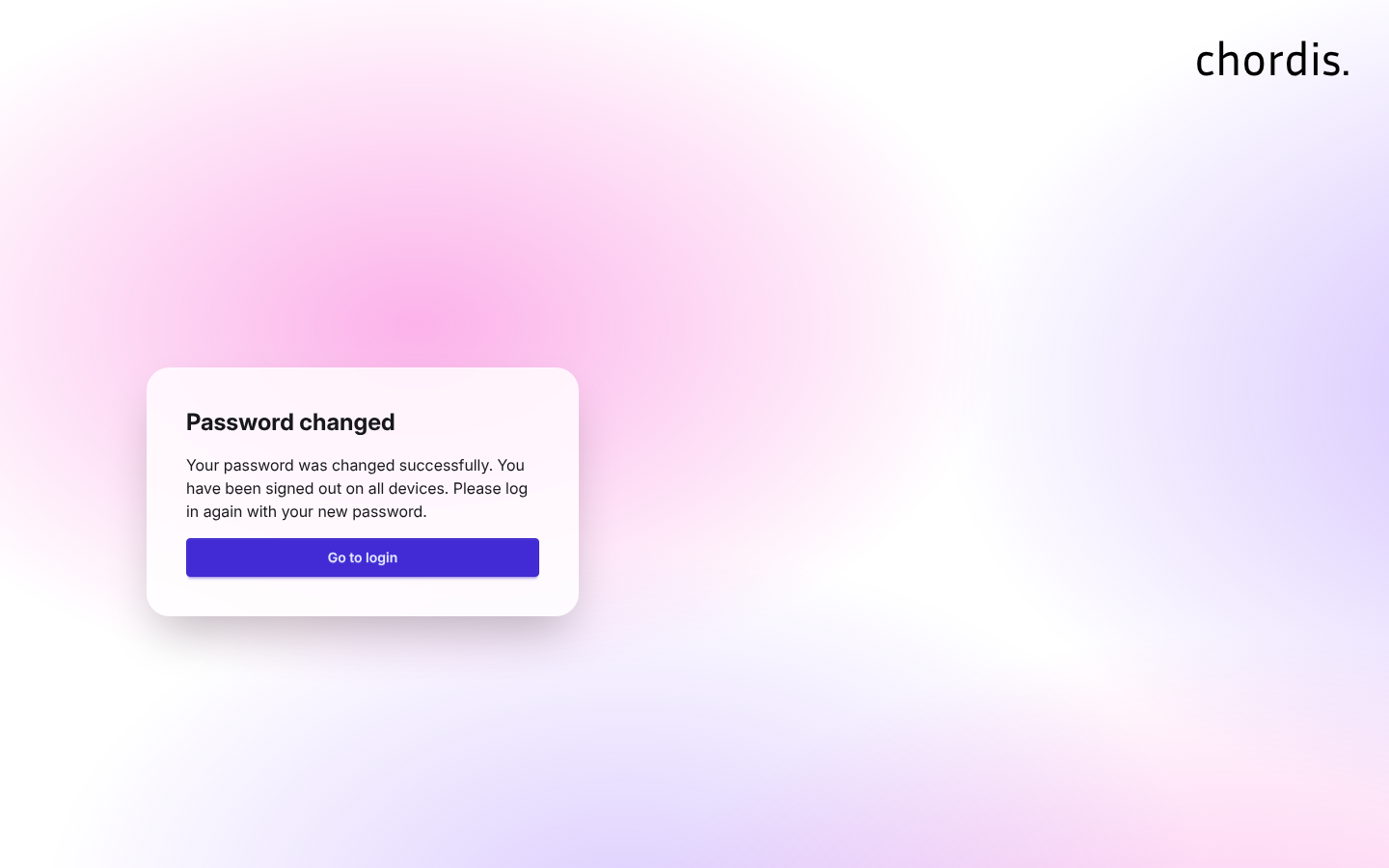
When you change your password on your Profile, Chordis signs you out on all devices and shows this page. Select Go to login to sign in with the new password.