Field mapping
The field-mapping page is where you set up or edit a transformation. Open it with Edit Mapping on the Inputs page or Edit on the Transformations page.
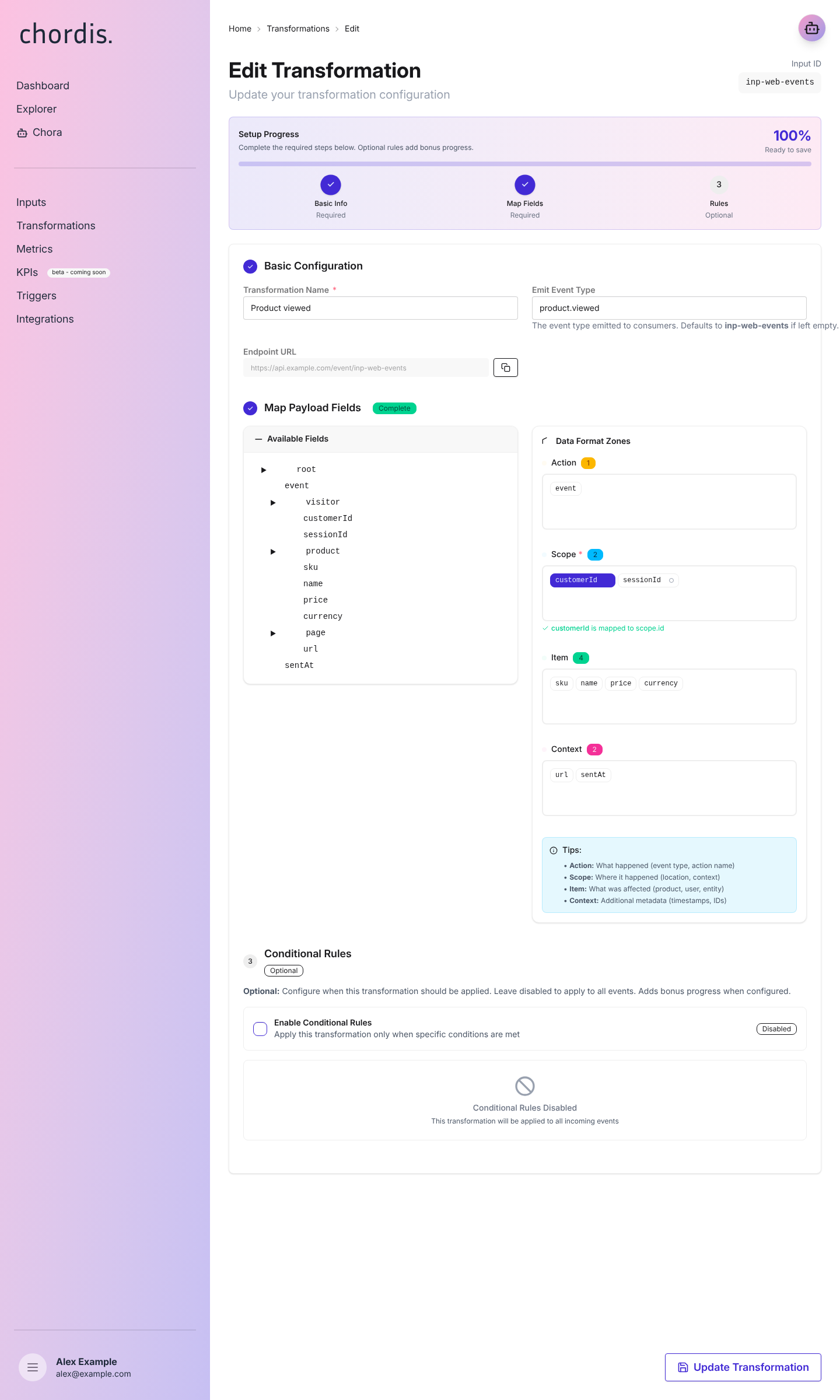
Setup Progress at the top tracks three steps: Basic Info and Map Fields are required, Rules is optional.
1. Basic Configuration
- Transformation Name: a name for you.
- Emit Event Type: the event type this transformation produces, for example
product.viewed. If you leave it empty, the input ID is used. - Endpoint URL: where your system sends its requests. Use the copy button to copy it.
2. Map Payload Fields
Send one request to the endpoint URL. Chordis shows its fields under Available Fields, and Chora sorts them into the four Data Format Zones: Action, Scope, Item and Context. To change the sorting, drag a field from Available Fields into a zone, and hover over a field in a zone to remove it.
Scope is required. Click the field that identifies the customer, such as
customerId, to mark it as scope.id. Metrics and triggers are calculated per
scope.id.
3. Conditional Rules (optional)
Turn on Enable Conditional Rules to apply the transformation only to events that meet your conditions. While it is off, the transformation applies to all incoming events.
Select Update Transformation (Save Transformation for a new one) when the required steps are complete.